

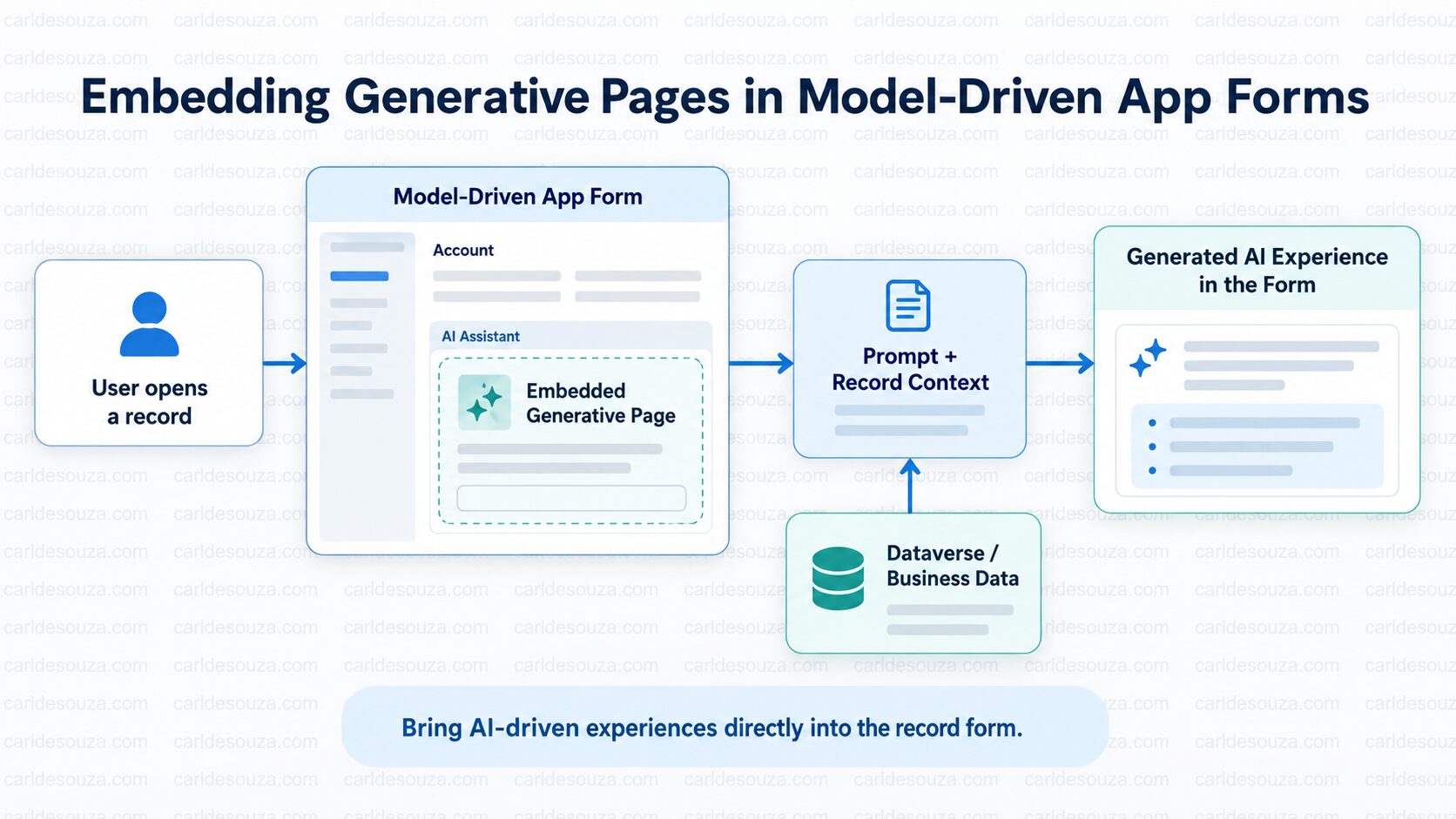
Generative Pages are one of the more interesting additions to model-driven apps. Instead of being limited to the traditional form layout of fields, subgrids, tabs, and sections, we can create a custom experience using natural language and then place that experience directly inside a form.
Today we will look at how to embed a Generative Page directly inside a model-driven app form in Microsoft Power Apps. If you haven’t already, check out my series on Coding Apps for the Power Platform.
This means we can combine the structure and data model of a traditional model-driven app with a much more flexible user interface. Even better, the Generative Page can receive the context of the record that the user currently has open.
Let’s explore this together.

What Is a Generative Page?
A Generative Page is a page in a model-driven app that we can create using natural language. Instead of manually building every component on the page, we describe what we want, and Power Apps generates the underlying React-based page and business logic for us.
For example, we might enter something such as:
Create a customer overview page showing the account name, contact information, open opportunities, recent cases, and activities. Display the information using modern cards and highlight important information at the top.
Power Apps can then generate an initial user experience from that description.
We can continue talking to the agent and refining the page until it looks and behaves the way we want.

This is already useful when creating standalone pages in a model-driven app, but things become interesting when we embed the page directly inside a form.
Why Embed a Generative Page in a Form?
Suppose we have an Account form in Dynamics 365 or another model-driven app. Traditionally, the form might contain fields such as:
- Account Name
- Phone
- Website
- Primary Contact
- Address
- Revenue
We may also have subgrids for contacts, opportunities, cases, and activities.
This works well, but sometimes we want to present information in a more useful way than simply displaying another list or another group of fields. For example, we could create a Generative Page that displays:
- A customer summary
- Important account metrics
- Open opportunities
- Recent customer service issues
- Key contacts
- Recent activities
- Recommended actions
We could then embed that experience directly inside the Account form. The user stays on the same record while seeing a purpose-built experience alongside the traditional Dataverse form.
How the Record Context Works
One of the most useful parts of this functionality is that a Generative Page can accept input parameters. When we embed a Generative Page inside a form, the model-driven app automatically passes the ID of the record currently being viewed into the page through the recordId parameter. This is important because it gives the page context.
Our flow now looks something like this:

We don’t need the user to select the Account again or perform another search. The page already knows which record the user is viewing.
Creating Our Generative Page
Let’s go through an example. First, let’s create the Generative Page that we want to embed. Go to make.powerapps.com and open the model-driven app in the app designer.
Select:
New → Add Page → Generative page
We can create a new page by selecting Describe a page.

We now need to describe what we want the page to do.

For our example, suppose we want to create a better Account summary experience.
We could use a prompt similar to:
Create an Account overview page designed to be embedded inside an Account model-driven app form. The page should accept an account recordId as an input parameter. When the page loads, retrieve the corresponding Account record and display the Account Name, Primary Contact, Phone Number, Website, Revenue, and Address. Also display recent Opportunities and Cases associated with the Account. Use a clean modern card-based layout that works well when embedded within a form.

Notice an important part of our prompt:
The page should accept an account recordId as an input parameter.
We are telling the page that it will receive the record context from somewhere else. Power Apps can then generate the code required to initialize the page and work with that parameter.
Once we submit our prompt, Power Apps generates the page. The generation process creates the underlying user interface and logic needed for the experience. We can then preview the page and see what has been created.

At this point, we may decide that we want to change the design. For example, we could tell the agent:
Move the Account Name and Primary Contact to the top of the page. Display Opportunities and Cases side-by-side underneath. Make Revenue more prominent and show it as a KPI card.
We can continue iterating conversationally until the page is closer to what we want. This is an important difference from traditional model-driven form customization. We aren’t necessarily dragging individual controls onto a canvas one at a time. We can describe the experience we want and iterate on it.

Publish the Generative Page
Once we are happy with the page, we need to publish it before using it in our application. Make sure the page is saved and published.

Now we can move to our model-driven form.
Open the Model-Driven App Form
Next, open the table containing the form where we want to embed the page. For example, we can open the Account table and edit the main Account form.
In the modern form designer, we will see the familiar form structure containing tabs, sections, columns, subgrids, and other components.

We now need to decide where our Generative Page should appear.
Add the Generative Page Component
In the form designer, select Components from the left pane.
Expand Display.
We should see a component called:
Generative page
 Select it and add it to the form. Power Apps will ask us which Generative Page we want to use. Select the page that we created earlier.

If our page accepts additional static parameters, we can configure those here as well. However, there is one parameter that we normally don’t need to manually configure:
recordId
When the user opens a record, the form automatically provides the current record ID to the embedded Generative Page. That is what connects our custom experience to the model-driven form.
It should now look like:

Save and Publish the Form
Once the component has been added, save and publish the form. We can now open our model-driven app and navigate to an Account record. The form will load as usual, but our Generative Page will now appear inside it.

Because the Account record ID is being passed to the page, the page can retrieve and display information specifically for the Account that is currently open.
Open another Account and the same Generative Page can render information for that Account instead.

Note: If the generative page is not dynamically displaying content, go back to your prompt and ensure it accepts the recordId. Also ensure the page is not rending sample data.
We have now effectively created a reusable contextual experience inside the form.
What Could We Build with This?
This is where the feature starts becoming quite powerful. Instead of thinking of Generative Pages simply as another way to build a page, we can think of them as contextual experiences that can live inside our business applications.
For example:
- On an Account form we could create a Customer 360 panel containing important customer information from several Dataverse tables.
- On an Opportunity form, we might create a Deal Room showing opportunity details, stakeholders, activities, products, and important milestones.
- On a Case form, we could create a Case Workspace displaying customer information, related cases, recent interactions, entitlements, and suggested next steps.
- For Field Service, we could create a Work Order Summary displaying asset information, service history, parts, previous visits, and related documentation.
The interesting part is that the user doesn’t have to leave the record they are working on.
Generative Pages vs Traditional Model-Driven Forms
Generative Pages don’t necessarily replace model-driven forms. In many cases, they complement them. Traditional model-driven forms are extremely good at structured data entry. They provide familiar capabilities such as fields, business rules, business process flows, security, validation, and Dataverse integration. Generative Pages give us another option when we need more control over how information is presented.
Combining Data from Multiple Tables
The Generative Page doesn’t need to display information from only the table represented by the form.
Once we know the current Account ID, we can use relationships to retrieve related information.

In my example. the data rendered from multiple table relationships, but the UI needed a little work! As a next step I would go back to the page and revisit the UI and Close Date:

Accessing Through URL
Embedded pages can also be accessed through a URL. Note the URL:
<yourorg>/main.aspx?appid=<yourappid>&pagetype=genux&id=<genpageid>&recordid=<yourrecordid>&entityname=<entityname>
Replace each of these and you can access the page that way. You may find a useful use case for this scenario.

The Gen Page Id you can find here:

Summary
In this post, we looked at how to embed a Generative Page directly inside a model-driven app form. We created a Generative Page, configured it to accept a recordId, added the Generative Page component to the form, and used the current Dataverse record as context for our custom experience.
The overall architecture looks like this:
User opens record → Model-driven app form → Embedded Generative Page → recordId → Dataverse → Custom user experience
This opens up some interesting possibilities for Dynamics 365 and Power Platform applications. Instead of replacing model-driven forms, we can enhance specific areas of them with purpose-built experiences generated and refined through natural language.
As Generative Pages continue to evolve, this combination of structured Dataverse applications and flexible generated user interfaces is definitely something worth exploring.

Keep learning. Keep building.
Explore AI, agents & Microsoft technology.
I share practical ideas, tutorials, and videos about AI, AI agents, Microsoft technologies, and the Power Platform.
Carl de Souza Enterprise Architect at Microsoft · AI Technology Expert


